📋 Requirements
Before setting up the Home Assistant integration, ensure you have:
- Home Assistant installed and running (any installation method)
- MQTT Broker - Mosquitto add-on recommended (or external broker)
- IntelliAGS configured in Mode 2 (Web + MQTT)
- Network connectivity between IntelliAGS and Home Assistant
💡 Recommended: Use the Mosquitto broker add-on in Home Assistant for the simplest setup. It
integrates directly with the MQTT integration.
🔧 MQTT Broker Setup
If you don't already have an MQTT broker, follow these steps to install Mosquitto:
Install Mosquitto Add-on
- In Home Assistant, go to Settings → Add-ons → Add-on Store
- Search for "Mosquitto broker" and click on it
- Click Install and wait for installation to complete
- Go to the Configuration tab and add a user:
logins:
- username: intelliags
password: your_secure_password
- Click Start to run the broker
- Enable Start on boot and Watchdog
Configure MQTT Integration
- Go to Settings → Devices & Services → Add Integration
- Search for "MQTT" and select it
- If using Mosquitto add-on, it should auto-discover - click Submit
- Otherwise, enter broker details manually (usually
localhost:1883)
⚙️ IntelliAGS MQTT Configuration
Configure your IntelliAGS to connect to the MQTT broker:
Via Web Interface
- Access your IntelliAGS web interface at
http://intelliags.local
- Navigate to Settings
- Set Operation Mode to 2 (Web + MQTT)
- Enter your MQTT broker settings:
| Setting |
Value |
| MQTT Broker |
IP address of Home Assistant (e.g., 192.168.1.100) |
| MQTT Port |
1883 (default) |
| MQTT Username |
intelliags (as configured in Mosquitto) |
| MQTT Password |
Your secure password |
- Click Save Settings
- The device will reconnect with MQTT enabled
💡 Tip: Check the OLED display - the NET label will turn cyan when MQTT is
connected successfully.
🔍 Auto-Discovery
IntelliAGS uses Home Assistant's MQTT auto-discovery feature. Once connected, entities appear automatically!
Discovery Process
- IntelliAGS connects to MQTT broker
- Publishes ~70 discovery messages to
homeassistant/ topics
- Home Assistant creates entities automatically
- Device appears under Settings → Devices & Services → MQTT
Discovery Topics
homeassistant/sensor/intelliags_{MAC}/battery/config
homeassistant/sensor/intelliags_{MAC}/oil_pressure/config
homeassistant/sensor/intelliags_{MAC}/coolant_temp/config
homeassistant/button/intelliags_{MAC}/start/config
homeassistant/button/intelliags_{MAC}/stop/config
...
⚠️ Note: Discovery may take 10-30 seconds after MQTT connection. If entities don't appear,
check the MQTT integration logs in Home Assistant.
📊 Available Entities
IntelliAGS exposes 52-55 entities to Home Assistant via MQTT auto-discovery. Entity IDs use
the format sensor.intelliags_{entity}.
Sensors (17-20)
| Entity ID |
Name |
Unit |
Category |
state |
Generator State |
- |
- |
battery_voltage |
Battery Voltage |
V |
- |
coolant_temp |
Coolant Temp |
°C |
- |
ambient_temp |
Ambient Temp |
°C |
- |
tach_rpm |
Tach RPM |
RPM |
- |
fuel_level |
Fuel Level |
% |
- |
oil_pressure |
Oil Pressure |
PSI |
- |
charger_voltage |
Charger Voltage |
V |
- |
charger_frequency |
Charger Frequency |
Hz |
- |
charger_state |
Charger Status |
- |
- |
run_hours |
Total Run Hours |
h |
- |
session_runtime |
Session Runtime |
- |
- |
alert |
Alert |
- |
- |
gateway_version |
Firmware Gateway |
- |
diagnostic |
controller_version |
Firmware Controller |
- |
diagnostic |
sd_storage |
SD Storage Free |
% |
diagnostic |
internal_health |
Internal Health |
- |
diagnostic |
Binary Sensors (1)
| Entity ID |
Name |
Icon |
remote_start |
Remote Start Request |
mdi:restart |
Switches - Controls (7)
| Entity ID |
Name |
Icon |
start |
Generator Start |
mdi:power |
preheat |
Block Heater |
mdi:fire |
glowplug |
Glow Plugs |
mdi:flash |
fuelcut |
Fuel Flow |
mdi:valve |
fuelpump |
Fuel Pump |
mdi:water-pump |
crank |
Crank Relay |
mdi:rotate-right |
charger |
Charger Enable |
mdi:power-plug |
Switches - Configuration (3)
| Entity ID |
Name |
Icon |
Category |
remote_start_enable |
Remote Start Enable |
mdi:toggle-switch |
config |
sd_logging |
SD Data Logging |
mdi:micro-sd |
diagnostic |
charger_on_boot |
Charger On Boot |
mdi:power-plug |
config |
Numbers - Configuration (17)
| Entity ID |
Name |
Range |
Unit |
cfg_battery |
Min Battery |
8.0 - 14.5 |
V |
cfg_fuel |
Min Fuel Level |
0 - 100 |
% |
cfg_max_coolant |
Max Coolant Temp |
40 - 150 |
°C |
cfg_glow_skip |
GP Skip Temp |
0 - 50 |
°C |
cfg_preheat_target |
Preheat Start Temp |
0 - 60 |
°C |
cfg_max_preheat |
Preheat Stop Temp |
0 - 60 |
°C |
cfg_preheat_time |
Preheat Max Time |
0 - 480 |
min |
cfg_oil_pressure |
Min Oil Pressure Run |
0 - 115 |
PSI |
cfg_max_oil_pressure |
Max Oil Pressure |
3 - 115 |
PSI |
cfg_preglow_time |
GP Preglow Time |
0 - 60 |
sec |
cfg_preglow_duty |
GP Preglow Duty |
0 - 100 |
% |
cfg_postglow_time |
GP Postglow Time |
0 - 600 |
sec |
cfg_postglow_duty |
GP Postglow Duty |
0 - 100 |
% |
cfg_crank_time |
Crank Max Time |
500 - 15000 |
ms |
cfg_min_rpm |
Min Running RPM |
200 - 1800 |
RPM |
cfg_oil_pressure_threshold |
Min Oil Pressure Start |
0 - 115 |
PSI |
cfg_retry_limit |
Crank Retry Limit |
1 - 10 |
- |
Selects - Configuration (3)
| Entity ID |
Name |
Options |
cfg_timezone |
Timezone |
17 timezone options with DST |
cfg_preheat_relay |
Block Heater Relay Type |
Internal, External |
cfg_remote_polarity |
Remote Start Polarity |
LOW (ON), HIGH (ON) |
Read-Only Configuration (1)
| Entity ID |
Name |
Note |
gp_mode_status |
GP Mode |
PWM or SmartGlow (read-only, requires recalibration to change) |
Buttons (4)
| Entity ID |
Name |
Icon |
Category |
save_settings |
Save Settings |
mdi:content-save |
config |
clear_sd |
Clear Data Log |
mdi:trash-can |
diagnostic |
clear_error_log |
Clear Error Log |
mdi:trash-can-outline |
diagnostic |
fwupdate |
Firmware Update |
mdi:update |
diagnostic |
Entity Summary
| Entity Type |
Count |
| Sensors |
17 |
| Binary Sensors |
1 |
| Switches (Controls) |
7 |
| Switches (Config) |
3 |
| Numbers |
17 |
| Selects |
3 |
| Buttons |
4 |
| Total |
52 |
📡 MQTT Topics
For advanced users who want to interact directly with MQTT:
Topic Structure
home/ags/{MAC}/ → Base topic (MAC lowercase, no colons)
home/ags/{MAC}/{sensor_id} → Sensor data
home/ags/{MAC}/{control_id}/state → Control state
home/ags/{MAC}/{control_id}/set → Control command
home/ags/{MAC}/config/{setting_id} → Config state
home/ags/{MAC}/config/{setting_id}/set → Config command
home/ags/{MAC}/{button_id}/press → Button command
Example Topics
For a device with MAC 123456789abc:
| Topic |
Description |
home/ags/123456789abc/battery_voltage |
← Sensor data (voltage value) |
home/ags/123456789abc/state |
← Sensor data (IDLE, RUNNING, etc.) |
home/ags/123456789abc/start/state |
← Switch state |
home/ags/123456789abc/start/set |
→ Switch command (ON/OFF) |
home/ags/123456789abc/config/cfg_battery |
← Config value |
home/ags/123456789abc/config/cfg_battery/set |
→ Config command |
home/ags/123456789abc/fwupdate/press |
→ Button press (trigger OTA) |
🤖 Example Automations
Here are some useful automation examples for your IntelliAGS:
Auto-Start on Low Battery
alias: Generator Auto-Start on Low Battery
description: Start generator when battery drops below threshold
trigger:
- platform: numeric_state
entity_id: sensor.intelliags_battery
below: 11.5
for:
minutes: 5
condition:
- condition: state
entity_id: sensor.intelliags_state
state: "IDLE"
action:
- service: button.press
target:
entity_id: button.intelliags_start
- service: notify.mobile_app
data:
message: "Generator starting - battery at {{ states('sensor.intelliags_battery') }}V"
mode: single
Auto-Stop on Full Battery
alias: Generator Auto-Stop on Full Battery
description: Stop generator when battery is charged
trigger:
- platform: numeric_state
entity_id: sensor.intelliags_battery
above: 14.2
for:
minutes: 30
condition:
- condition: state
entity_id: sensor.intelliags_state
state: "RUNNING"
action:
- service: button.press
target:
entity_id: button.intelliags_stop
- service: notify.mobile_app
data:
message: "Generator stopping - battery charged to {{ states('sensor.intelliags_battery') }}V"
mode: single
Fault Alert Notification
alias: Generator Fault Alert
description: Send notification on any generator fault
trigger:
- platform: state
entity_id: binary_sensor.intelliags_fault
to: "on"
action:
- service: notify.mobile_app
data:
title: "⚠️ Generator Fault!"
message: "IntelliAGS has detected a fault. Current state: {{ states('sensor.intelliags_state') }}"
data:
priority: high
ttl: 0
mode: single
Low Fuel Warning
alias: Generator Low Fuel Warning
description: Alert when fuel level is low
trigger:
- platform: numeric_state
entity_id: sensor.intelliags_fuel_level
below: 25
action:
- service: notify.mobile_app
data:
title: "⛽ Low Fuel Warning"
message: "Generator fuel level at {{ states('sensor.intelliags_fuel_level') }}%"
mode: single
📱 Dashboard Card Example
This advanced dashboard card provides a comprehensive generator overview with gauges, status indicators, and
controls. Requires button-card, stack-in-card, and card-mod custom components from
HACS.
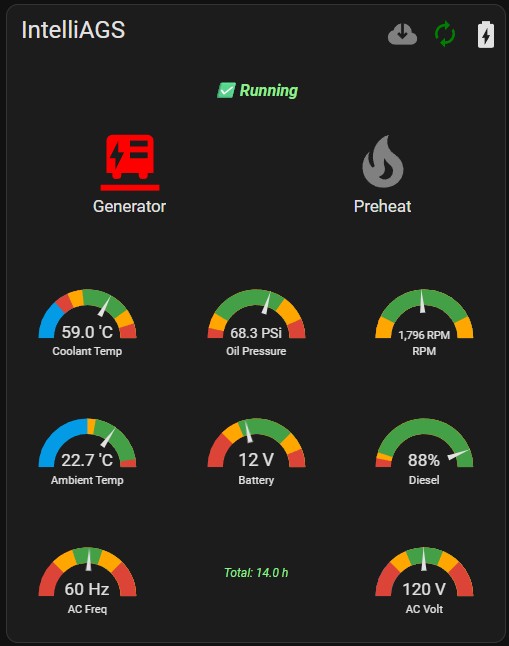
type: custom:stack-in-card
cards:
- type: horizontal-stack
cards:
- type: custom:button-card
show_icon: false
show_state: false
show_name: true
name: IntelliAGS
tap_action: none
hold_action: none
custom_style: true
styles:
card:
- padding: 10px
- border: none
- background: transparent
- display: flex
- justify-content: flex-start
- align-items: center
name:
- width: 100%
- text-align: left
- padding-left: 8px
- font-family: var(--paper-font-headline)
- font-size: var(--paper-font-headline-size, 24px)
- font-weight: var(--paper-font-headline-weight, 400)
- color: var(--primary-text-color)
- type: custom:button-card
entity: button.firmware_update
show_name: false
show_state: false
icon: mdi:cloud-download
tap_action: none
hold_action:
action: call-service
service: button.press
service_data:
entity_id: button.firmware_update
styles:
card:
- width: 42px
- height: 58px
- box-shadow: none
- background: transparent
- border-style: none;
icon:
- width: 37px
- height: 32px
- color: grey
- type: custom:button-card
entity: automation.generator_preheat_and_charging_automation
show_name: false
show_state: false
show_icon: true
size: 30px
tap_action: none
hold_action: none
state:
- value: "on"
icon: mdi:autorenew
color: green
- value: "off"
icon: mdi:autorenew-off
color: grey
styles:
card:
- width: 28px
- height: 58px
- box-shadow: none
- background: transparent
- border-style: none;
- type: custom:button-card
entity: sensor.charger_state
show_name: false
show_state: false
show_icon: true
size: 32px
tap_action: none
hold_action: none
state:
- value: Charging
icon: mdi:battery-charging
color: green
- value: Standby
icon: mdi:battery-heart-variant
color: green
- value: Fault
icon: mdi:battery-alert-variant
color: red
- value: "Off"
icon: none
color: blue
styles:
card:
- width: 38px
- height: 58px
- box-shadow: none
- background: transparent
- border-style: none;
- type: horizontal-stack
cards:
- type: custom:button-card
entity: sensor.alert
name: ""
icon: mdi:alert-circle
show_state: true
show_icon: false
show_name: false
styles:
card:
- padding: 8px
- text-align: center
- border-style: none
icon:
- color: red
- height: 40px
state:
- color: lightgreen
- font-weight: bold
- font-style: italic
- font-size: 16px
- type: horizontal-stack
cards:
- type: custom:button-card
entity: switch.start
name: Generator
icon: mdi:power
show_state: false
show_name: true
state:
- value: "on"
color: red
icon: mdi:generator-stationary
- value: "off"
color: green
icon: mdi:power
hold_action:
action: more-info
tap_action:
action: toggle
card_mod:
style: |
ha-card {
display: flex;
justify-content: center;
align-items: center;
padding: 0;
margin: 0;
border-style: none;
height: 80%;
}
.button-card-icon {
align-self: center;
}
.button-card-button {
display: flex;
flex-direction: column;
justify-content: center;
align-items: center;
}
- type: custom:button-card
entity: switch.preheat
name: Preheat
show_state: false
show_name: true
state:
- value: "on"
color: red
icon: mdi:fire-alert
- value: "off"
color: grey
icon: mdi:fire
hold_action:
action: more-info
tap_action:
action: toggle
confirmation: null
card_mod:
style: |
ha-card {
display: flex;
justify-content: center;
align-items: center;
padding: 0;
margin: 0;
border-style: none;
height: 80%;
}
.button-card-icon {
align-self: center;
}
.button-card-button {
display: flex;
flex-direction: column;
justify-content: center;
align-items: center;
}
- type: horizontal-stack
cards:
- type: gauge
entity: sensor.coolant_temp
unit: "'C"
name: Coolant Temp
precision: 1
needle: true
segments:
- from: 0
color: "#db4437"
- from: 15
color: "#ffa600"
- from: 30
color: "#43a047"
- from: 80
color: "#ffa600"
- from: 95
color: "#db4437"
min: -40
max: 110
card_mod:
style: |
ha-card {
padding: 0;
margin: 0;
border-style: none;
transform: scale(0.8);
margin: 0 auto;
height: auto;
}
- type: gauge
entity: sensor.oil_pressure
unit: PSi
name: Oil Pressure
precision: 1
needle: true
min: 0
max: 115
segments:
- from: 0
color: "#db4437"
- from: 8
color: "#ffa600"
- from: 20
color: "#43a047"
- from: 80
color: "#ffa600"
- from: 100
color: "#db4437"
card_mod:
style: |
ha-card {
padding: 0;
margin: 0;
border-style: none;
transform: scale(0.8);
margin: 0 auto;
height: auto;
}
- type: gauge
entity: sensor.tach_rpm
unit: RPM
name: RPM
precision: 1
needle: true
segments:
- from: 1500
color: "#db4437"
- from: 1600
color: "#ffa600"
- from: 1730
color: "#43a047"
- from: 1870
color: "#ffa600"
- from: 2000
color: "#db4437"
min: 1700
max: 1900
card_mod:
style: |
ha-card {
padding: 0;
margin: 0;
border-style: none;
transform: scale(0.8);
margin: 0 auto;
height: auto;
}
- type: horizontal-stack
cards:
- type: gauge
entity: sensor.ambient_temp
unit: "'C"
name: Ambient Temp
precision: 0.1
needle: true
min: -40
max: 50
severity:
red: 45
green: 10
yellow: 5
card_mod:
style: |
ha-card {
padding: 0;
margin: 0;
border-style: none;
transform: scale(0.8);
margin: 0 auto;
height: auto;
}
- type: gauge
entity: sensor.battery_voltage
unit: V
name: Battery
precision: 1
needle: true
min: 9
max: 17
segments:
- from: 9
color: "#db4437"
- from: 11
color: "#ffa600"
- from: 12
color: "#43a047"
- from: 15
color: "#ffa600"
- from: 16
color: "#db4437"
card_mod:
style: |
ha-card {
padding: 0;
margin: 0;
border-style: none;
transform: scale(0.8);
margin: 0 auto;
height: auto;
}
- type: gauge
entity: sensor.fuel_level
unit: "%"
name: Diesel
precision: 0.1
needle: true
severity:
green: 10
yellow: 6
red: 0
card_mod:
style: |
ha-card {
padding: 0;
margin: 0;
border-style: none;
transform: scale(0.8);
margin: 0 auto;
height: auto;
}
- type: horizontal-stack
cards:
- type: gauge
entity: sensor.charger_frequency
unit: Hz
name: AC Freq
precision: 1
needle: true
segments:
- from: 50
color: "#db4437"
- from: 55
color: "#ffa600"
- from: 58
color: "#43a047"
- from: 62
color: "#ffa600"
- from: 65
color: "#db4437"
min: 50
max: 70
card_mod:
style: |
ha-card {
padding: 0;
margin: 0;
border-style: none;
transform: scale(0.8);
margin: 0 auto;
height: auto;
}
- type: custom:stack-in-card
card_mod:
style: |
ha-card {
background: transparent !important;
box-shadow: none !important;
border-radius: 0 !important;
border: none !important;
}
cards:
- type: vertical-stack
cards:
- type: custom:button-card
entity: sensor.run_state
show_icon: false
show_name: false
show_state: true
styles:
card:
- padding: 12px
- text-align: center
- border-style: none
state:
- font-weight: bold
- font-size: 11px
- color: lightgreen
- type: custom:button-card
entity: sensor.run_hours
show_icon: false
show_name: false
show_state: true
state_display: |
[[[
const v = entity.state;
return "Total: " + v + " h";
]]]
styles:
card:
- padding: 14px
- text-align: center
- border-style: none
state:
- font-style: italic
- font-size: 12px
- color: lightgreen
- type: gauge
entity: sensor.charger_voltage
unit: V
name: AC Volt
precision: 0.1
needle: true
min: 100
max: 140
segments:
- from: 0
color: "#db4437"
- from: 110
color: "#ffa600"
- from: 115
color: "#43a047"
- from: 125
color: "#ffa600"
- from: 130
color: "#db4437"
card_mod:
style: |
ha-card {
padding: 0;
margin: 0;
border-style: none;
transform: scale(0.8);
margin: 0 auto;
height: auto;
}
Required HACS Components
Install these custom components via HACS before using the dashboard:
- button-card - Custom button styling and states
- stack-in-card - Nest cards within cards
- card-mod - Custom CSS styling for cards
💡 Tip: The firmware update button uses hold_action to prevent accidental updates. Hold the
cloud icon to trigger an OTA check.
🔧 Troubleshooting
Entities Not Appearing
| Issue |
Solution |
| No entities after connection |
Wait 30 seconds for discovery to complete. Check MQTT integration logs. |
| OLED NET label not cyan |
MQTT not connected. Verify broker IP, port, username, and password. |
| Discovery messages not received |
Check that Mosquitto allows the user. Review mosquitto.log. |
Connection Issues
| Issue |
Solution |
| Frequent disconnections |
Check WiFi signal strength. Consider Ethernet connection. |
| Authentication failed |
Verify MQTT username/password match Mosquitto configuration. |
| Broker unreachable |
Ensure MQTT port 1883 is not blocked by firewall. |
MQTT Debug
To monitor MQTT traffic, use an MQTT client like MQTT Explorer or subscribe to all topics:
mosquitto_sub -h localhost -u intelliags -P password -t "home/ags/#" -v